Paperspace hidden by Modelspace Wipeout

One of my colleagues came to me today with this conundrum; the wipeout in modelspace was hiding paperspace objects. This was happening both on the screen and when plotting.

Wipeout Problem

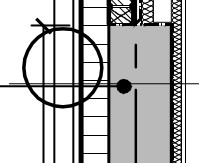
Here you can see that the orange circle is hidden behind the blues lines. The blue lines are in model space and are the frames of the wipeout and the orange circle is in paper space.

When plotting the circle stays behind the blue lines.

The solution to plotting side of things is to ensure Paperspace is plotted last.

Wipeout Check Box

When plotting you can find this option on the right hand side. Check the plot paperspace last box.

Wipeout Solved

Now the plot will show the circle in paperspace above the wipeout in modelspace.

One one drawing I found that if you turn off wipeout frames and back on again the display is corrected, however on another this does not work. In order to turn off wipeout frames type WIPEOUT –> then F –> then OFF and then turn them back on again (WIPEOUT –> F –> ON).


Unexplodable Blocks

One of my colleagues today posed the question, why doesn’t my block explode? Firstly, I thought this was impossible, but I was wrong!

The first issue is check that it is not a group, they are very similar on the surface and can be mistaken for blocks and visa versa! X or explode cannot work on groups.

However X or explode can sometimes not work on blocks. There is a setting for blocks that I had never noticed under the block creation box, called “allow exploding”, uncheck this and your blocks cannot be exploded!

In order to get around this, bring up the block edit dialogue with nothing selected.

Then select the offending block in the list and check the “allow exploding” box. Now click OK. Yes to redefine. Note this might cause some issues with placing!

explodeblock

Now the block can be exploded!


No Thumbnails

One of my colleagues was struggling with files that did not have thumbnails. According to this (very helpful) post this is due to the THUMBSAVE setting not being set to 1.

This is a setting that is saved globally per machine but affects drawings. This can be confusing as there are global settings and drawing specific settings. Drawings saved on a machine with this off won’t create a thumbnail in the file.

Retaining XREF Layouts

One of my colleagues was getting very frustrated with the XREF he was using, he had set up an XREF, turn off the layers as he wanted, then saved and exited the drawing. Upon reopening the drawing he found these changes were reset to the layers on the XREF source.

AutoCAD appears to be setup strangely on my colleagues machine where it prefers to inherit layering from the source. Whilst this is a logical method it doesn’t help new users to understand how to “lock” their XREFs. By default AutoCAD should be in the “locked” mode.

Frustratingly AutoCAD also appears to have no visual way to set VISRETAIN, a toggle for XREF state in the XREF manager would be nice, perhaps a check box with a note next to it saying “Check to retain layer information in current drawing”. That way people will know what is going on!

So its back to the command line, type VISRETAIN and then set to 1 for keeping the layers in the current drawing as you want them or 0 to inherit from source.

—-

From AutoCAD help: (Copyright Autodesk).

VISRETAIN
0
The layer table, as stored in the reference drawing (xref), takes precedence. Changes made to xref-dependent layers in the current drawing are valid in the current session only and are not saved with the drawing. When the current drawing is reopened, the layer table is reloaded from the reference drawing, and the current drawing reflects all of those layer property settings.
1
Xref-dependent layer changes made in the current drawing take precedence. Layer settings are saved with the current drawing’s layer table and persist from session to session.


Inverted Arc

Ever been annoyed with AutoCAD and its silly way of drawing arcs? You always seem to managed to draw it the wrong way even though you are sure you started it in the correct place to go anti-clockwise?

No longer a problem in AutoCAD 2014! Just hold CTRL down to reverse the arc direction!

Fields of Polylines

I regularly need to obtain areas for floor plans in the projects I work on. I have always drawn a polyline and then looked at the properties palette and knocked off 6 decimal places to get the result. Then this is written down on a non-printing layer.

I was thinking, there has to be an easier way, especially one that updates the area when the design changes.

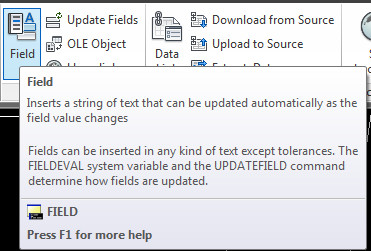
Well there is! Fields. To access this click on the insert tab and click on field. Or type FIELD.

Fields01

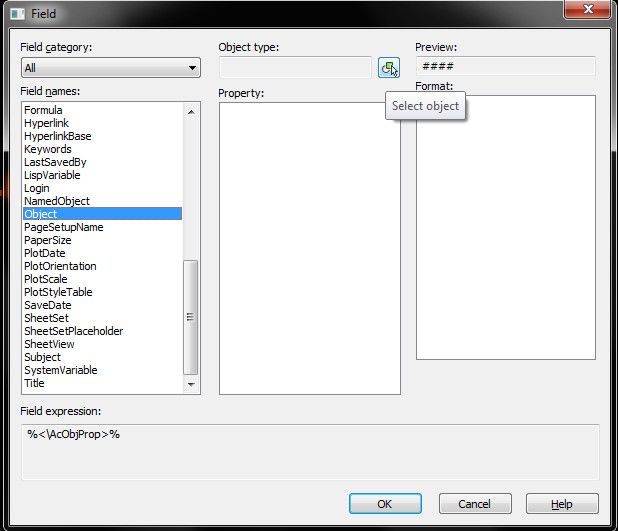
Once you click this button you will be presented with a large box with a list of fields that can be used within it.

fields02

Scroll down to object, in the second column there is a small button to select the object in question. Select your polyline. The box will now update to the properties of that object, here you can select “area” and the result will display in the last column.

fields04

Now you can click OK to place the field object wherever you would like it! Or you can alter the precision, or in my case I wanted the result in square metres and not square mm which is the default.

In order to change format or add suffices etc. click on Additional Format. Now you get another box wher you can alter the way the field is displayed.

fields03

I used a conversion factor to produce the square metre information required.

And that is it! You now have a value that alters when you change the polyline size. If it doesn’t update, try REGEN or click on update fields in the Data section of the Insert tab.

Ultra Large PDF

One of my colleagues created a 7MB PDF from a CAD file today. This in itself is a sure sign that something was wrong with either the PDF or the generation of it. So after crashing Acrobat in an attempt to reduce the file size, I reviewed the PDF to see what might be the issue.

One part of the PDF took a while render in Acrobat which pointed out that the PDF contained something with dense information that was taking a while to load. Usually this is an image or some large single object like that.

Once I reviewed the source I discovered that there was no images attached to the file. So this was not the issue.

A quick Audit revealed 4 errors but this was not the issue either.

So, process of elimination. What is causing the issue. Delete various items from the sheet to see which item is cuasing the issue. I usually start with viewports.

This was done by deleting one at a time and creating a PDF each time. Each time I noted that the PDF was taking ages to generate, which also is a sign that something is not quite right.

Once I found the viewport I could look at that part of the model to see what the issue could be. From experience hatches can be problematic and it turned out that my colleague had created an ultra dense hatch that looked like a solid. Once changed to a solid hatch (which I don’t like, but that’s another story), the file printed file.

Interestingly AutoCAD sometimes pops up a box saying to convert these to solid or increase the scale but it did not do so on this drawing, so don’t rely on that to tell you if there is an issue with ultra-dense hatches.

Sketchup Location

If you are using Sketchup and want to geo-locate a custom location, this is done by Latitude and Longitude. If you however don’t know that information (and most don’t), you can retrieve this from an address using this site!

Text to Sketchup

Sketchup 7 (the last free Sketchup to have a DWG import option) doesn’t seem to have a way to bring text from AutoCAD in.

So when a flat topographic survey is brought in, the survey points are not labelled. Not very useful.

However if you have full AutoCAD with Express Tools, you can type TXTEXP to “explode” the text to polylines. Very useful!

Create Hatch

Bizarrely AutoCAD has not (as far as I am aware) created an easy hatch creation method, preferably in a GUI. This is long, long, long outstanding and should have been introduced back in R14 or earlier. If you want to create a hatch, you have to write it out by hand in a text file (there is no automation either), giving the text file a .pat extension.

Apart from the header row for the name and description of the hatch file, the hatch format is like this:

angle, x-origin,y-origin, delta-x,delta-y,dash-1,dash-2

Each line in the text file describes a drawn line, whether this is solid or dashed. All patterns are made from lines that are dashed or continuous and nothing else (a dot a line with a very short or no length). The dash length is variable so you then build up a hatch patten from a set of dashed lines that intersect. 

In order to create say herringbone brick you have the following pattern text:

0, 0,0, 10,10, 30,-10
90, 20,-30, -10,10, 30,-10

This creates a dashed line one way that intersects with one 90 degrees to it and when they repeat a brick pattern occurs. For such a simple shape it is still quite hard to wrap your head around the way they work!

If a complex hatch is required it is expected of the user to somehow translate their drawings from a set of lines into the hatch format. This is of course nigh-on impossible for most users and for a pattern with over one hundred entities will take forever to measure and write out the results, and the 7 step help file isn’t really that helpful and is quite vague.

This is one my major annoyances in AutoCAD that they fiddle with this and that and don’t fix fundamentally missing features like this!

——

If you are thinking, man I cannot do that, don’t worry if you have the full version of AutoCAD (sorry LT guys) you can install a LISP file to do this for you. The awesome guys at Cadalyst posted in one of their tips a hatch creation LISP.

This LISP has two functions, draw and save. Accessed through DRAWHATCH and SAVEHATCH (strangely enough).

The draw hatch command command creates a 1×1 box in drawing units, so for metric in my case this is a 1x1mm box. Tiny!

——

So this is the process I followed to create my hatch.

Firstly, draw your tessellating hatch inside a square, using only line entities. Make sure no curves are present. Then copy this in all directions to make sure the tessellation works! Save this drawing as your template for the hatch.

Secondly, scale your square down to a 1×1 unit square. You can save this as another file if you want. Leave this drawing open (save first, as always before doing anything major).

Thirdly create a new drawing and run DRAWHATCH. This will create a 1×1 unit square with nothing in it. Go back to your open drawing and copy the entities within the square (you can copy the square for ease and delete it after the copy if you want), and paste inside the square drawn in the new drawing by DRAWHATCH.

Fourthly, run SAVEHATCH and select the line objects (polylines won’t work so explode them first) and follow the prompts. A command line window will appear to make things easier.

Fifthly, give it a description and then save it as a file name in a place where you can load them into AutoCAD. Our practice as a server folder for custom hatches.

So that’s it you now have a hatch. One of the problems I encountered with this method is that the created hatch is very small. You will have to enter a large scale factor to correct this.

——

If you are feeling adventurous, you can load the pattern file into Excel and scale the numbers created up to suit. Save out as CSV to get the comma delimited text file back!