One of my colleagues mysteriously could not use the delete key in AutoCAD. It worked fine in other programmes.
Generally this is seems to be due to a crash that resets certain variables (for some strange reason).
In this case the PICKFIRST variable was reset to 0. When PICKFIRST is at 0 it only allows objects to be selected after the command is initiated. The delete key does not initiate the ERASE command so the nothing happens when the delete key is pressed and PICKFIRST is set to 0, appearing to be broken.
If you set PICKFIRST to 1 then objects can be selected and an command initiated after this selection. The delete key then works as you expect it to do.
I noticed today that a drawing I was working in had columns on by default in MTEXT. As there did not seem to be a way to turn this option off on the Ribbon and only an option to turn it off in the MTEXT editor once activated I had a root around for a setting (using the premise that AutoCAD has myriads of settings).
The setting to control MTEXT columns is strangely enough MTEXTCOLUMN. Set it to 0 to have no columns.
One of my colleagues reminded me of an age old problem I have encountered several times and never got to the bottom of, when inserting a block it scales to a strange size and doesn’t fit to the page.
This turns out to be yet another setting between the “American Imperial” measurement system and the “International ISO Metric” measurement that exists in AutoCAD.
It turns out that changing MEASUREMENT setting to 1 (metric), from the default of 0 (imperial) only changes the way hatches and linetypes scale and not the inherent way the drawing works. The underlying unit scale of the drawing is governed by other setting. So old drawings created when out-of-the-box AutoCAD defaulted to imperial might still have all the old settings.
DWGUNITS command line options
The option in question is DWGUNITS. It appears that the default is 1, which is inches. This is why a block drawn in a drawing using DWGUNITS of inches is inserted into a drawing set to mm scales to a differing scale!
As an aside DWGUNITS also sets linear display precision, which is also set by LUPREC.
The options after DWGUNITS is typed appear in a pop-up command line box for easier reading, they are as follows:
Unit for length:
This is the overriding base setting between metric an imperial, here we note that the original setting was 1 for the block template and we changed it to 3, which is the system we use in the office.
Linear display format:
This changes the output reading for items like DISTANCE from 2000.000(decimal) say to 2.000E+03 (scientific). I find the decimal easier to read so we will select 2 here.
Linear display precision:
This governs the number of decimal points in the output reading for items like DISTANCE. 0 gives a measurement of 2000, 1 results in 2000.0 etc. I tend to leave this at 3, but this is personal preference. (LUPREC system variable also changes this setting, and is also found in the dialogue box after typing UNITS, found under menu –> FORMAT –> UNITS).
Scale objects from other drawings upon insert:
This is the one that makes the drawings scale from one unit set to another. I have left this as YES as it will highlight any other blocks and drawings that might not have been set to mm in the first option. Otherwise the block will be inserted without scaling and the error persists.
Match INSUNITS to drawing units?
INSUNITS is another option to scale BLOCKS on insert. It is best to say yes here so they do match, otherwise errors could occur!
Scale objects in current drawing to reflect change in units?
This one you need to say no to. The reason being is that you have drawn a line that is 2000 units long, and in this case before changing the DWGUNITS this would have been interpreted as 2000 inches. AutoCAD can scale the drawing (which is sometimes useful when say changing from a drawing that was actually drawn in inches to metric) however in this case you want to preserve the “2000 units” as 2000 and just change the unit type from inches to mm.
Then the drawing and block drawn in the drawing will be compatible with other drawings drawn in mm.
Please note that DWGUNITS and UNITS are completely different commands.
Please also note the DWGUNITS command is undocumented in AutoCAD both 2013 and 2014 help, it might be present in previous versions but probably need to go back many years to obtain anything!
As always in AutoCAD there are numerous ways to do the same thing, mainly due to the way the program has matured over the years. Items that existed way back in R12 are still there in R19.1 (2014), even if they have been replaced with a “better” implementation. These legacy options can sometimes be useful and also if you are encountering a problem its likely that something has been drawn using an older method that in not compatible with newer options.
Dimension without any text added
Take for instance text suffices for dimensions. The usual way to append text is to either set it as default in the Dimension Style Editor or append it for an individual dimension using the properties box (see above).
However you can also append text using <> then whatever text in the Text Override box. This is useful as you can have this as well as a Prefix and a Suffix. The <> represents the dimension. For instance if I have a prefix of SO and a suffix of mm, I can use the following in the Text Override,
Overall <> opening
to achieve,
Overall SO 1045mm opening
This can be useful for one off dimensions where the text needs to be padded out to make the dimension clearer and the dimension style is carrying suffices that are required to be kept.
Dimension with text suffix
The override box can also be used to place text below the dimension line whilst the dimension remains above. This is done using the <> X modifier! For example;
<> XTEXT
Dimension with text below the dimension line
Note that if you want the text to be centred no space is required between “X” and the text required otherwise a space precedes the text below the line.
The major drawback with using text override as the main method for applying suffices is that Match Properties will not carry the text override from one dimension to another, it has to be retyped, whereas a dimension with Suffix used will carry over.
A quick post to highlight that AutoCAD has a lot a “hidden” settings that most people (including me) don’t use or even know about.
Take for instance Match Properties, this actually has a selective settings box so that only some of the properties from the source object are matched!
Match Properties Dialog Box
Note that when Match Properties is clicked and the source object is selected AutoCAD lists the current settings under “Current Active Settings”, usually this is everything, however you can type S (or click settings in 2013 and above) and you will be presented with the dialog to turn off (or on) various properties to copy.
A colleague of mine was struggling with numerous issues when using XREFs. The two main ones where having multiple Layer States with XREF prefixes that couldn’t be removed and the other was not wanting to see the XREF layers.
Layer States Dialogue for no XREFs does not work with Ribbon pulldown
The first issue was frustrating as whilst there is an option to disable these is in the layer states manger dialogue, checking the box does not disable them in the Ribbon pulldown. Duh. So the solution ended up being, delete the layer states in the XREF.
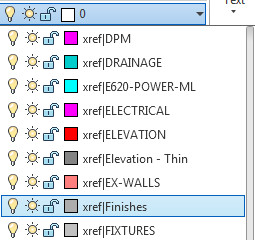
The second issue was easy to solve as AutoCAD has this feature built-in and it works! It works with both the Layer Pulldown, Layer Palette and Classic Layer! Wow!
Layer Drop Down showing XREF layers
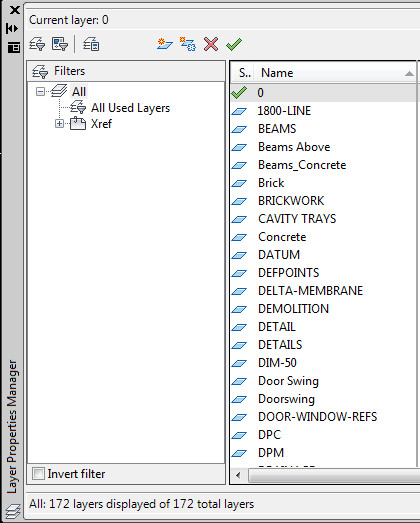
This is how to remove XREF layers from these palettes. You will need a filter (yup AutoCAD has layer filters!)
Layer Palette indicating the filter section
On the panel on the left, click XREF, this will now show the list of layers for the XREF. Click on the checkbox below that states Invert Filter and voila, you have a list of layers without XREF layers within.
One of my colleagues was asking how do I rotate a view in a specific viewport. I was all over this, and was like there are several ways, however the way I use is to use UCSFOLLOW, then rotate the UCS, turn off UCSFOLLOW and voila view rotated in viewport that is different to that of the model space.
Another colleague was like why don’t you rotate the viewport itself, that would be easier?
I was like, viewports don’t rotate? He rotated the viewport and wow! The view inside followed. This works for any angle!
The system variable that controls this is VPROTATEASSOC which has been in AutoCAD since 2010!
One of my colleagues just asked, where is the dynamic feedback for the rotate angle when using rotate.
I played with the setting for a bit and discovered that angular information is not available during rotate! How dumb is that?
There is a work-around though. Go to Drafting Settings (right click on OSNAP, OTRACK etc, they all bring up the same dialogue, just on a different tab) then go to POLAR TRACKING and set the Increment Angle to 1 and the Polar Angle measurement to last segment.
Polar tracking option for 360 degree angle feedback
Now when rotating you will see 360 degree information, useful for rough rotates by eye.
Remember to change these back after your rotate command! Thinking about it, it is probably possible to turn this into a script and button so that you have a “Rough Rotate” command.
One of my colleagues had this issue today and we could not work out why the file would not detach. Apparently this is due to the XREF being in Paperspace and currently a forced detach of an XREF in paperspace is not possible. The XREF needs to found (QSELECT is your friend) and deleted prior to the detaching.
This website uses cookies to give you the most relevant experience by remembering your preferences and repeat visits. By clicking “Accept”, you consent to the use of ALL the cookies.
This website uses cookies to improve your experience while you navigate through the website. Out of these, the cookies that are categorized as necessary are stored on your browser as they are essential for the working of basic functionalities of the website. We also use third-party cookies that help us analyze and understand how you use this website. These cookies will be stored in your browser only with your consent. You also have the option to opt-out of these cookies. But opting out of some of these cookies may affect your browsing experience.
Necessary cookies are absolutely essential for the website to function properly. This category only includes cookies that ensures basic functionalities and security features of the website. These cookies do not store any personal information.
Any cookies that may not be particularly necessary for the website to function and is used specifically to collect user personal data via analytics, ads, other embedded contents are termed as non-necessary cookies. It is mandatory to procure user consent prior to running these cookies on your website.