
If you are hunting for a CAD block for something the following sites might be of use! CAD Forum and CBEN, both of which are free! If you have a nice block, please share!
Secure Load
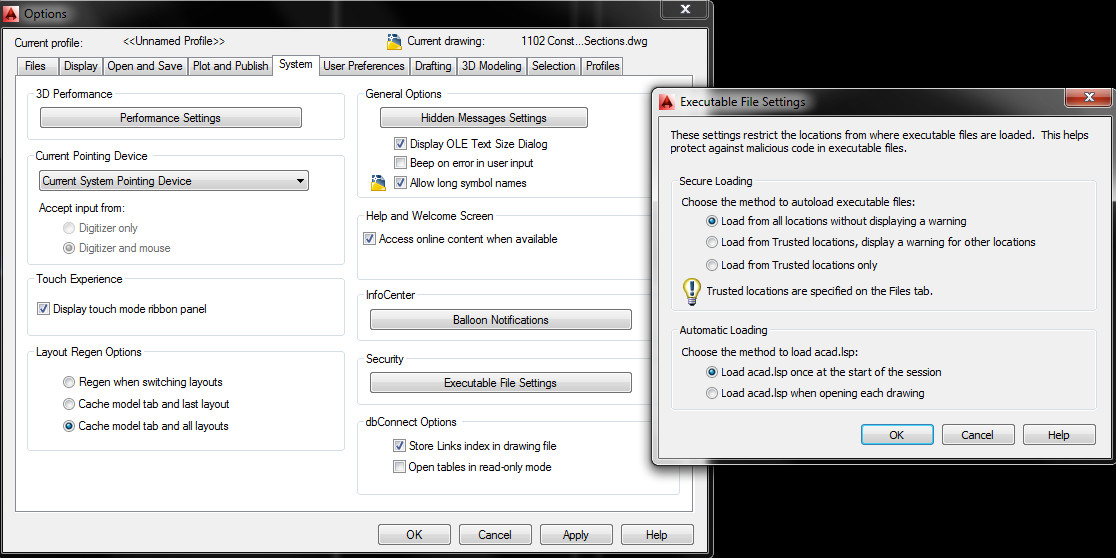
If you, like me, use LISPS you will find that a new very useful feature has been added to AutoCAD 2014. They have introduced Secure Loading of executables, which in principle is a good thing.
However if you like me are struggling to get the Trusted Locations to work, you can go back to the “legacy” behaviour (load everything anyway) by going to settings –> system –> executable file settings and turning off this feature.
Frames
One of my colleagues was asking, why can I not turn the frame off around this imported image? IMAGEFRAME was not turning the frame off. It turns out that the drag-and-dropped image was actually a PDF, and therefore the frame is controlled by PDFFRAME, so its worth noting the imported image type in order to control things like this.
However, it should be noted that all “frame” commands (IMAGEFRAME, PDFFRAME etc. can now be controlled by one single command FRAME. This appears to be valid from version 2012 onwards.
——
Excerpt from help, AutoCAD 2013 (c) AutoDesk.
Changing the setting for FRAME changes the IMAGEFRAME, DWFFRAME, PDFFRAME, DGNFRAME, XCLIPFRAME, POINTCLOUDCLIPFRAME, and WIPEOUTFRAME settings to the same setting as the new FRAME setting.
0 – The frame is not visible and it is not plotted. (The frame temporarily reappears during selection preview or object selection.)
1 – Displays and plots the frame.
2 – Displays but does not plot the frame.
3 – The settings vary for all objects with frames in the current drawing: images, underlays, clipped xrefs, clipped point clouds, and wipeout objects do not all have the same frame settings.
Rogue Layers
A colleague of mine had dropped in some blocks from an external source and found that they had two layers and wanted only one. They wanted to move all objects on one layer to another within the blocks.
Normally I would go about this, if there were no blocks involved, by using QSELECT. Then select the desired layer in the Ribbon and PURGE out the unused layer.
However as they are in blocks this does not work as the selection ignores the lines in blocks and just selects the blocks themselves. As we were after only specific lines in these blocks I was faced with exploding them all or some clever LISP.
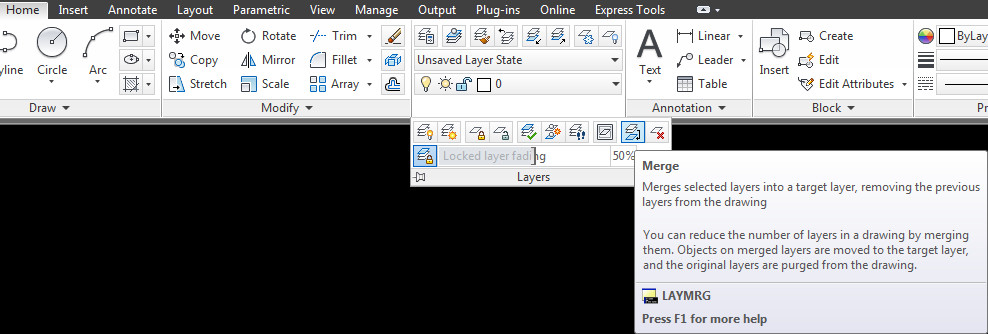
However I discovered two commands that would not require LISP or lots of work! If you don’t want the layer LAYDEL should do the trick but the one that was really awesome was LAYMRG. This merged the two layers and purged out the unused one and kept all the blocks intact!
This can be found on the ribbon in the following location:

Power Command Line
I discovered today that some code can be typed straight into the command line in AutoCAD. I had not realised this, I thought all code had to be loaded as a routine.
The following changes the PSLTSCALE for all layouts!
(foreach lay (layoutlist)(command "_LAYOUT" "_Set" lay "PSLTSCALE" 0))
UCS World
I received a set of drawings today from a colleague, whilst this is not unusual, the drawings all had differing UCS settings, which was unusual, most of my colleagues do not touch the UCS.
Usually I reset the UCS to world and carry on. I like my modelspace to to be set to world so when I copy and paste the rotation stays the same to the screen. I tend to then rotate the UCS in viewports as and when required.
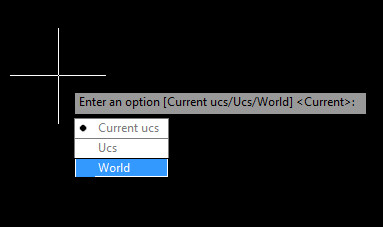
This time, typing UCS, W to reset to world UCS left me with this, a wonky UCS.

The UCS is wonky, or Y is not up the page. The square in the UCS indicates it is set to WORLD, so I was confused.
The problem was not that the view was set to the UCS but the UCS was (kind of) set to the view. I will explain. (See bottom of post for a quick explanation).
If you type VIEWTWIST, it should be set to 0 for the UCS to be the way I wanted it. I found it was set to 270!
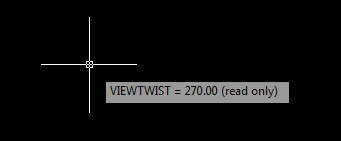
Now I have run into another problem, the VIEWTWIST variable is readonly!
So lastly I found that typing PLAN and setting to WORLD reset everything to how I wanted.
Interestingly this problem seems to be similar to the one a while back with rotating the view in AutoCAD LT.
—-
For a quick method of the above, if the UCS is not in the default position and it is set to world, then the view has been rotated. To rotate the view back, type PLAN, then WORLD. Or click on the arrows above viewcube in full AutoCAD.

Constrained
One of colleagues today noted that today he had annoying boxes. When I looked at his screen he had something like this.

These strange annoying boxes are constraints, part of AutoCAD’s parametric system, found under the Parametric Tab on the ribbon (strangely).
—
In order to use constraints you need to click the INFER constraints button on the bottom left of the status bar. This allows objects drawn in this mode to have the Parametric constraints. This button looks like this

Or this, depending on whether you use icons or not.
 Once on you can draw your objects to be constrained. Here I have drawn a rectangle and a polyline. If I move the polyline the rectangle will deform as the polyline and the rectangle are linked or constrained together.


If you do not want this constrain feature on this object anymore you can click on the object and then delete constraints on the ribbon.

Once removed the object returns to a plain old rectangle polyline.

Remember to turn off the INFER constraints button before drawing anything else as all items drawn will have this parametric capability.
Not the Point
One of my colleagues had put a point in a block to stop it from “growing in size”. Whilst this is an ingenious work-around, it is easier to control the size of points if you don’t want them to be massive when zoomed out in a drawing.
If you type DDPTYPE into the command line you will get this dialogue box.

The circle with a cross is my usual selection for style, the point size can be relative to the screen, where 5% is usually about right, or for my colleague’s requirements, absolute. This is in the base units for the drawing, e.g. MM or INCHES.
Note that you can set POINTS to be tiny dots and therefore nearly impossible to see and these do not scale at all. This is useful as sometimes a drawing can be full of points that are “invisible”.
Match Properties
I have found that match properties has a settings box! This allows for selective matching rather than total matching. I never knew of this before! Have a look at this:
http://cad-notes.com/2009/06/autocad-match-properties-settings/
Cursor Trouble
So you got a nice shiny new machine, an AutoDesk certified graphics card and you’ve just installed the latest version of AutoCAD. All is great, you have lots of new features to help you productivity and you are steaming along. Then you insert an image and this image has a white background. Then your world falls apart. You can no longer see your cross hairs.
You have white cross hairs on a white background.
Don’t worry this problem can be sorted by turning off 3D acceleration. For some unknown reason AutoCAD does not have dynamic cursor colour when 3D acceleration is on!
Type 3DCONFIG in the command line, click “Manual Tune” and uncheck “Enable Hardware Acceleration”. The dynamic cursor colour now works.
Once you have undertaken the task needing the dynamic cursor colour feature you will probably want turn the acceleration back on.
